We’re back from Salesforce Connections, where marketers came to learn how to build experiences that adapt to every customer.
In our joint session with Salesforce, we dug a level deeper and focused on how to build emails for every AI-powered inbox.
We’ve discussed AI email before on this blog, offering an introductory explainer of AI summaries and how the customer experience is impacted by them. So in our presentation, my co-host Timothy Kauble and I wanted to show receipts of what we’re seeing with clients and what’s actually working to get emails summarized properly by AI tools.
If you couldn’t make it out to Chicago, not to worry. This post recaps everything you need to know: what you can control, and 6 practical fixes to work with AI, not against it.
Missed our session at Salesforce Connections? View our slide deck: "What AI Is Doing to the Email Inbox."
6 Fixes to Take Control Back in AI Inboxes
AI-powered inboxes don’t have to be the enemy, if you know what to control to achieve the outcome you want.
You can ship these six real-world fixes this quarter, and we’ve got before-and-after examples to show you how.
Fix #1: Put valuable information above the AI fold
Yes, the AI fold exists. AI summarizes whatever you put in the first 100-150 characters.
There are also some platform differences. Apple Intelligence ignores alt text, while Gemini handles images. You’ll want to optimize for both when designing emails.
Pro tip: Lead with the ask. Front-load your offer, promo code and CTA. Save the brand story for below the fold.
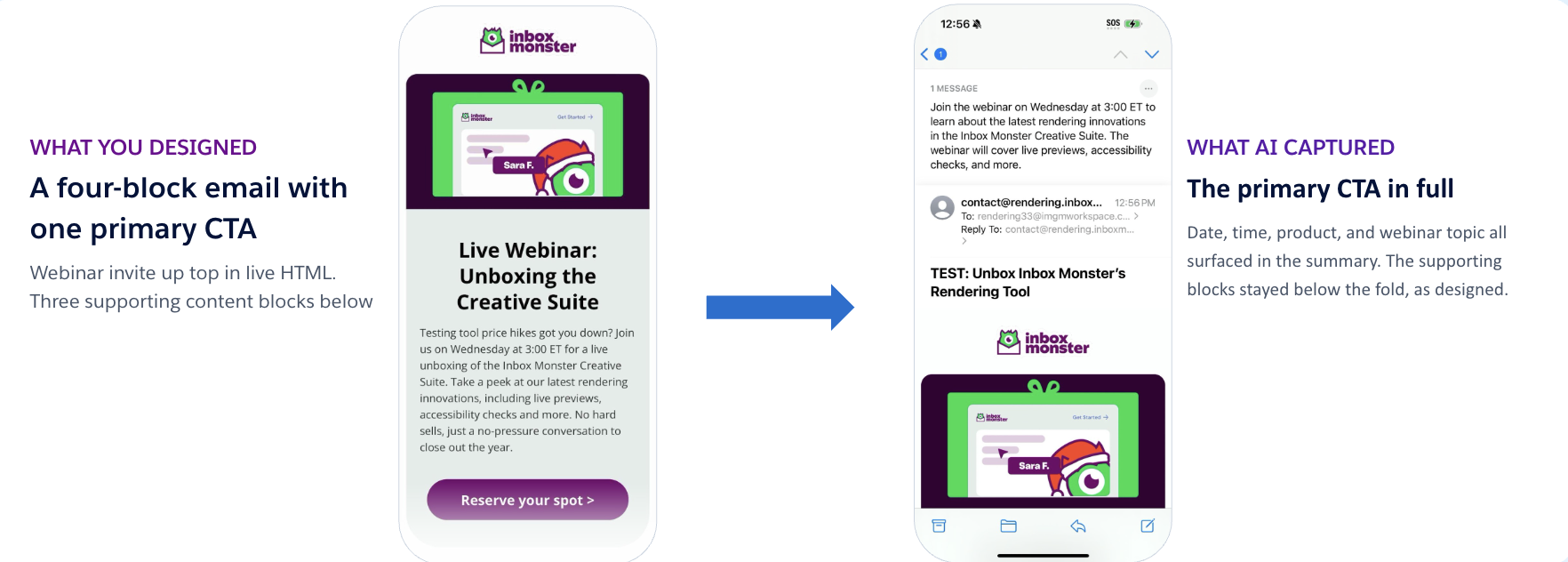
Fix #2: Focus on one goal per email
Multi-topic emails confuse AI summaries. When you have three asks, AI picks one—and it's usually the wrong one.
Pro tip: Keep it simple. If you can’t summarize the email in ten words, neither can the AI.
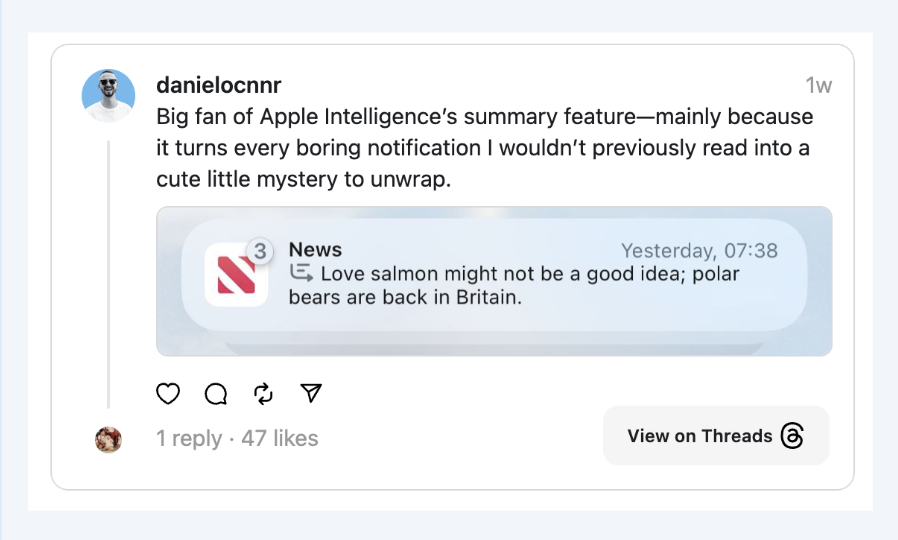
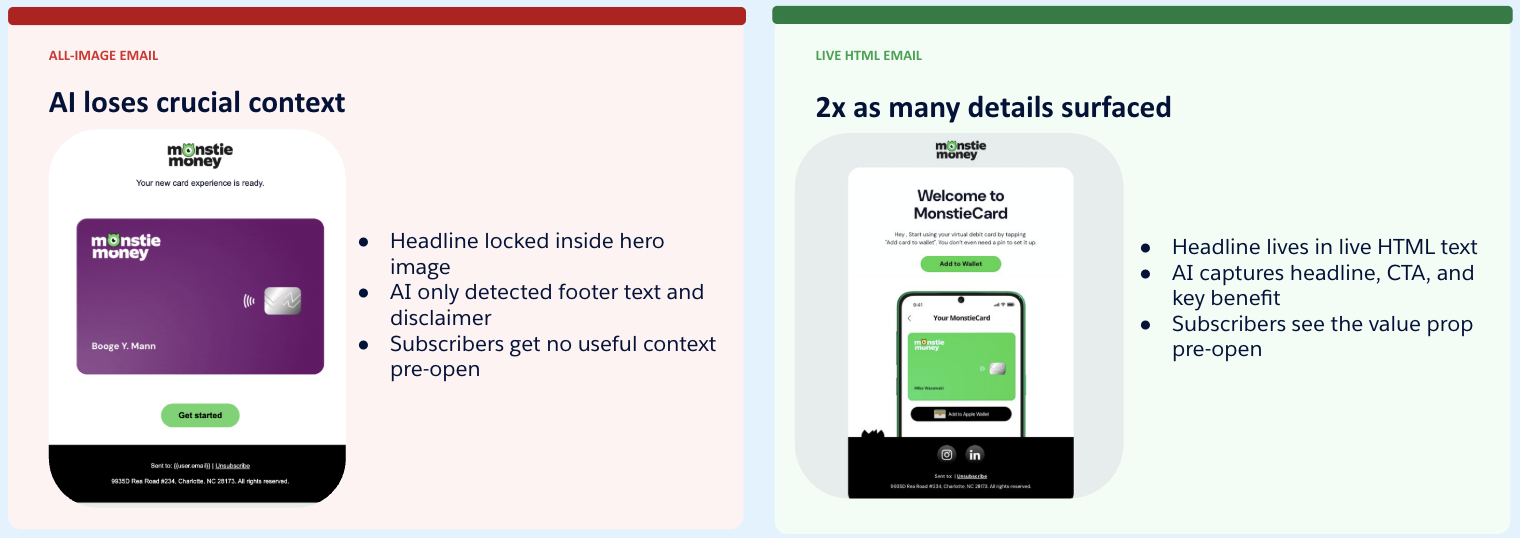
Fix #3: Use live HTML email text, not just images
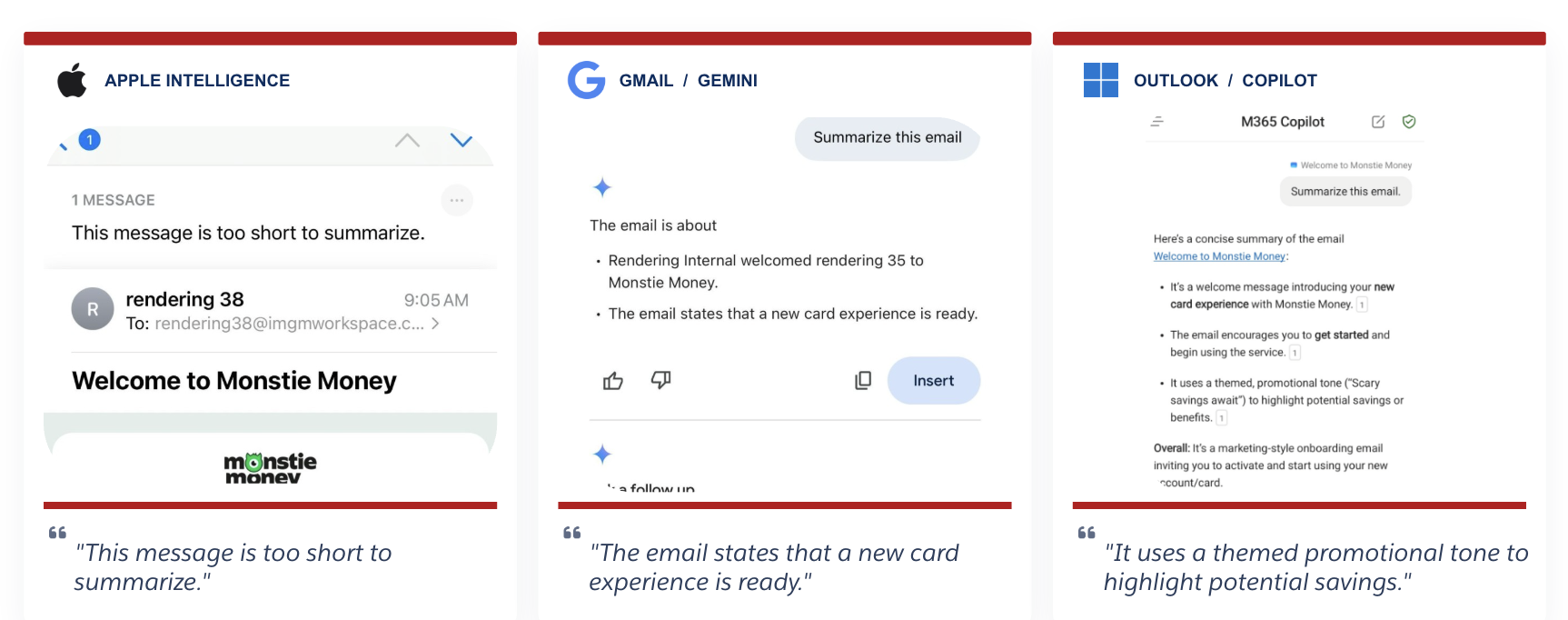
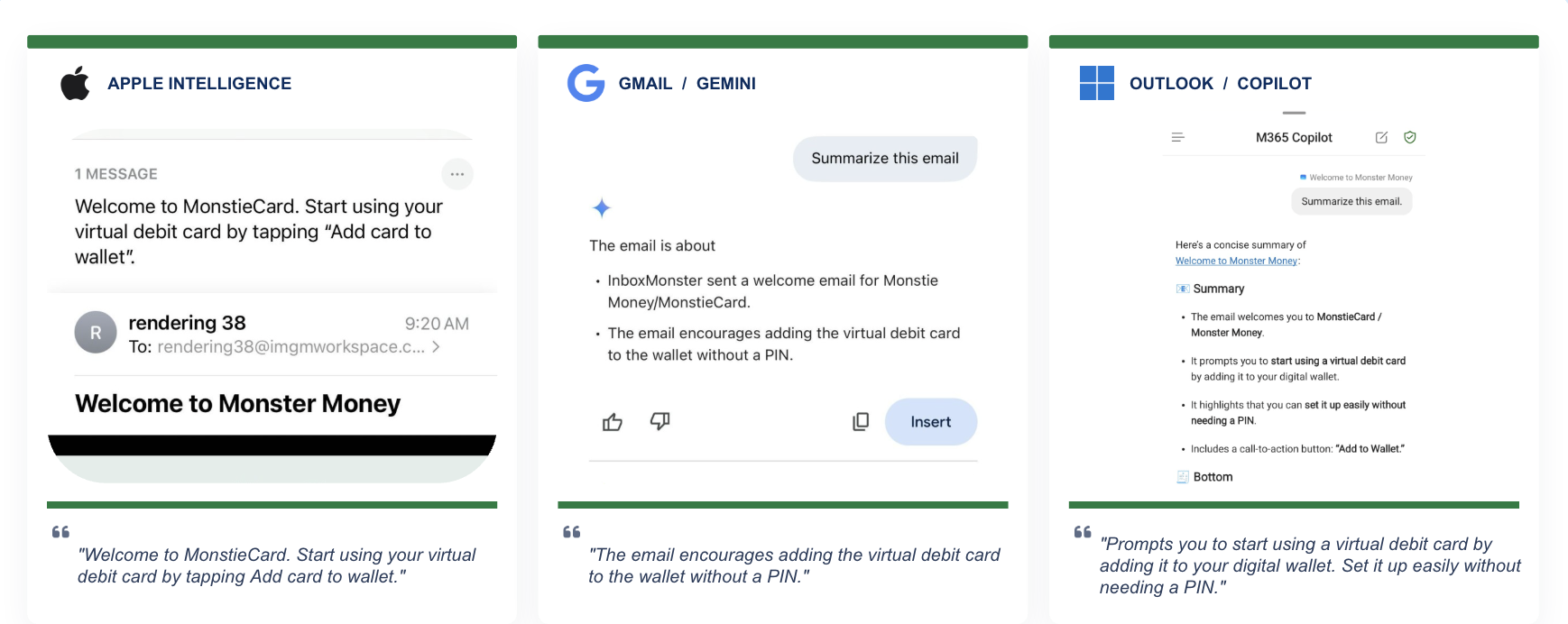
With all-image emails, AI loses crucial context. Headlines are locked inside hero images, and AI sees only footer text and disclaimers. This means that subscribers get nothing useful pre-open.
When you use live HTML email, twice as many details are surfaced. Headlines are easily readable, and AI captures the call-to-action (CTA) and key benefits. Subscribers see the value before they click through.
Pro tip: Conduct an images-off test. Disable images in your client. If your email is unreadable, AI will struggle too.
Fix #4: Design for accessibility
Using semantic HTML and live text is also an accessibility win. This practice helps recipients with screen readers, not just AI tools.
Pro tip: Emojis carry through. We’ve noticed that AI rewrites words, but rarely touches emojis. This means you’re free to use them as occasional brand cues, as long as you follow accessibility best practices, such as using them sparingly and not replacing words.
Fix #5: Take control of what AI extracts with annotations
Annotations let you steer what shows up in the inbox—but there are rules.
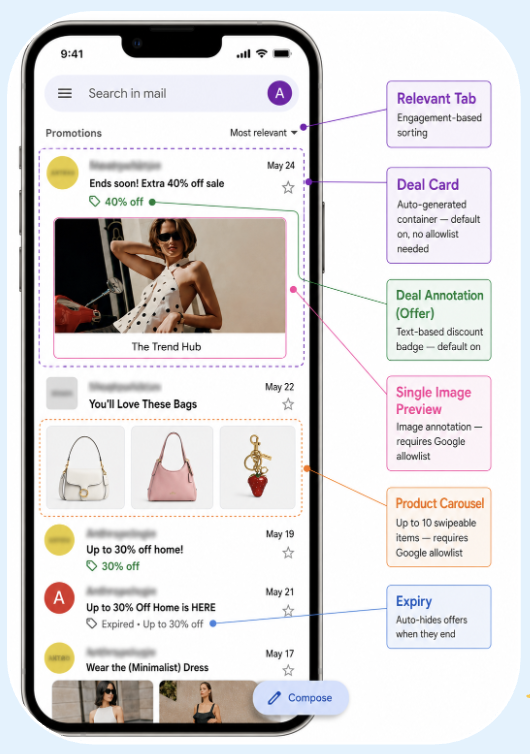
There are four annotation formats:
- Deal card (default)
- Offer/deal annotation (default)
- Single image preview (allowlist)
- Product carousel (allowlist)
Gmail and Yahoo auto-extract deal content from your email text by default, but image-based annotations require you to apply for Google’s allowlist first.
You can apply to Google’s allowlist by emailing p-Promo-Outreach@google.com and manually coding the schema.org markup. This process can take up to 7-10 business days. There are limitations to these annotations, so having them display isn’t guaranteed.
A note on product carousels: When a user clicks an image directly from their inbox preview, Gmail routes them to your site without opening the email, so your ESP will log 0% opens and 0% clicks. To prevent dashboard blindness, append distinct UTM parameters to every image URL in your carousel code, and set conversion goals downstream.
Pro tip: Tabbed inboxes are required. Annotations don’t show in the Primary inbox, so despite what many email marketers may believe, the Promotions tab is a great place to be. In fact, annotations also add valuable information that makes it more likely that your message will be prioritized in the Promotions tab when sorted by "Most relevant."
Fix #6: Audit before you send
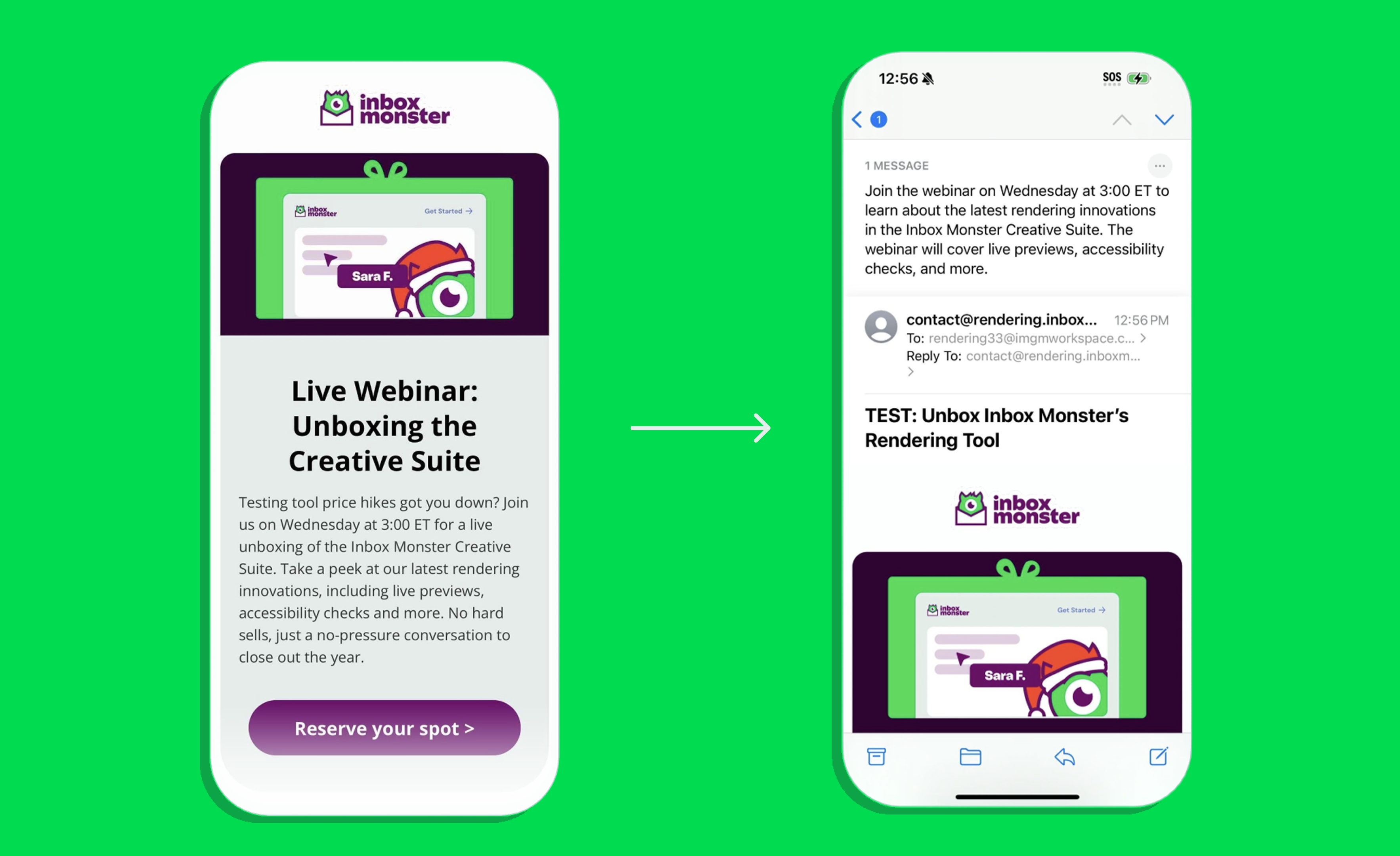
Thankfully, you don’t have to wait to see how your emails will be interpreted by AI inboxes. Inbox Monster has partnered with Salesforce to offer easy email testing, native within Marketing Cloud Next.
Our creative rendering integration shows every AI preview side by side, so you only need one pre-flight check across Gmail, Microsoft Copilot and Apple Intelligence.
To get a sneak peek, watch this demo from our friends at Salesforce.
TL;DR: Our Top Takeaways on AI Inboxes
To quickly recap this post, here are the five fixes you can implement to take back control from AI inboxes:
- Place high-value content above the fold. AI grabs what’s at the top, so front-load your value prop and primary CTA.
- Focus on one goal per send. Multiple goals confuse AI as much as humans. Pick a single core message.
- Pair live HTML text with images. If your hero is a big graphic with alt text like “Biggest sale ever,” Apple Mail will probably ignore it.
- Design for accessibility. Ensure your message is seen, read, and understood by everyone, including screen readers and AI.
- Use schema and annotations. Gmail and Yahoo Annotations + Schema.org markup let you guide what gets extracted.
- Test every send. The more you test, the more you’ll see what AI surfaces—and how to work with it.
Looking for a rendering platform that can give you the AI advantage? Book a demo today to learn more about Inbox Monster’s Creative Suite.
{{less-time="/blog-ctas"}}